
Download Media Player Classic Free for Windows PC — Version 2.8.4
A lightweight, open-source media player with built-in codecs, hardware-accelerated playback, HDR support, and a clean interface. Plays every format out of the box.
What Is Media Player Classic?
A complete guide to one of the most trusted open-source media players for Windows.
The Lightweight Powerhouse
Media Player Classic – Home Cinema (MPC-HC) is a free, open-source media player for Windows that handles virtually every audio and video format without needing external codec packs. Originally developed as a lightweight alternative to bloated media players, MPC-HC has earned a loyal following among users who want fast, reliable playback without the clutter. The Media Player Classic download remains one of the most searched-for media tools on the web, and for good reason.
Built for Modern Media
MPC-HC ships with built-in LAV Filters, which means it can play MKV, MP4, AVI, HEVC, AV1, VP9, FLAC, and dozens of other formats right out of the box. There is no need to hunt for codec packs or worry about compatibility. Hardware acceleration through DXVA2, D3D11, NVIDIA CUVID, and Intel QuickSync ensures smooth playback even for 4K and HDR content, keeping CPU usage minimal.
Community-Driven Development
After the original MPC-HC project was discontinued in 2017, developer clsid2 forked the project and has been actively maintaining it since 2018. The community fork has added major features including HDR and Dolby Vision support, a modern dark theme, YouTube streaming via yt-dlp integration, video preview thumbnails on the seekbar, and improved subtitle rendering. MPC-HC runs on Windows 7 through Windows 11, supports both 32-bit and 64-bit systems, and requires minimal system resources — making it a solid choice whether you are running a modern desktop or an older machine.
Key Features
Everything you need for a premium playback experience, built into one lightweight player.
Wide Format Support
Plays MKV, MP4, AVI, WMV, FLV, HEVC, AV1, VP9, AAC, FLAC, DTS, and dozens more. No external codec packs required — everything works out of the box.
Hardware Acceleration
GPU-accelerated decoding with DXVA2, D3D11, NVIDIA CUVID, and Intel QuickSync. Offloads video processing to your graphics card for smooth 4K playback.
HDR & Dolby Vision
Full HDR10 and Dolby Vision support through the built-in MPC Video Renderer. Tone-mapping for SDR displays lets you enjoy HDR content on any monitor.
Built-in LAV Filters
Includes LAV Splitter, Audio, and Video decoders. These high-quality, actively maintained filters handle all the format parsing and decoding internally.
Advanced Subtitles
Renders SRT, SSA/ASS, SUB, and PGS subtitles with full styling support. Adjustable fonts, colors, positioning, and sync delay for a customized viewing experience.
Modern Dark Theme
A built-in dark mode gives MPC-HC a sleek, modern appearance. Reduces eye strain during extended viewing sessions, especially in low-light environments.
YouTube Streaming
Stream YouTube videos directly inside MPC-HC through yt-dlp integration. Paste a URL and watch without ads or browser overhead, at up to 4K resolution.
Seekbar Thumbnails
Hover over the seekbar to see video preview thumbnails. Navigate to the exact moment you want without scrubbing blindly through the timeline.
Lightweight & Portable
Installs in under 30 MB and uses minimal CPU and RAM. Available as a portable version that runs from a USB drive with no installation needed.
System Requirements
MPC-HC runs well on most Windows systems. Here are the minimum and recommended specs.
| Component | Minimum | Recommended |
|---|---|---|
| Operating System | Windows 7 SP1 (32/64-bit) | Windows 10/11 (64-bit) |
| Processor | SSE2-capable (Pentium 4 era) | Intel Core i3 / AMD Ryzen 3 or newer |
| RAM | 512 MB | 2 GB or more |
| Disk Space | 30 MB (installed) | 100 MB (with codecs and settings) |
| GPU | DirectX 9 compatible | DirectX 11+ (DXVA2/HDR support) |
| Display | 800 × 600 | 1920 × 1080 or higher |
| Runtime | Microsoft Visual C++ Redistributable (included in installer) | |
Download MPC-HC 2.8.4
Get the latest stable release of Media Player Classic – Home Cinema for your Windows PC.
Media Player Classic — Home Cinema
Version 2.8.4 • Released October 18, 2026
Download MPC-HC 2.8.4 64-bit Installer • 22 MB • Windows 7–11What's new in MPC-HC 2.8.4
Donations are appreciated. There is now a PayPal option.
Changes from 2.8.3 to 2.8.4:
Updates:
- Updated MPC Video Renderer to version 0.10.10.2618
Changes/additions:
- MPCVR now has an improved HDR to SDR tonemapping algorithm
- Replaced statusbar audio icon. It now also shows channel count.
Fixes:
- Fixed a regression in 2.8.3 that could cause a hang when first showing seek preview
- Fixed an issue that could shrink window size when exiting fullscreen from another monitor with different DPI
- Fixed some issues with capture graph building
- Several small fixes and improvements
Full changelog
Full list of all changes since start of this project.
Overview of features
A lot of people seem to be unaware of some of the awesome features that have been added to MPC-HC in the past years. Here is a list of useful options and features that everyone should know about: Click to expand
- Play HDR video
This requires using either MPC Video Renderer (MPCVR) or madVR. These renderers can be selected here: Options > Playback > Output With other video renderers, the colors will be wrong! MPCVR is included and is the recommended and default renderer for modern systems. MadVR needs to be installed separately. MPCVR also supports Dolby Vision. MadVR does not. For optimal performance you should change the hardware decoder to D3D11 in LAV Video Decoder settings when using MPCVR on Windows 10/11, because this renderer uses DirectX11.
- The installer of MPC-HC is very basic (and that will not change).
I therefore recommend using K-Lite Codec Pack. That includes MPC-HC and other essential components. It has a very advanced installation that can automatically create file associations, and helps you with easy configuration of important MPC-HC settings, such as preferred subtitle language(s). It also does automatic configuration of renderer and hardware decoding, for best performance and HDR support. The Standard version should be sufficient for most people. Use Full version of you like to use MadVR.
- Modern GUI Theme (Dark or Light) or the old classic theme
Options > Player > User Interface It is also possible to change the height of the seekbar and size of the toolbar buttons. Plus there are options to show audio/video details in the statusbar, such as codec and resolution.
- Customizable toolbar buttons
You can add/remove/re-order the player buttons. There are also several different toolbar designs to choose from.
- Video preview on the seekbar
Options > Player > User Interface > Hover type
- Ability to search for subtitles
Press D for manual search. Or enable automatic search in: Options > Subtitles > Misc
- Adjust playback speed
Menu > Play > Playback rate The buttons in the player that control playback rate take a 2x step by default. This can be customized to smaller values (like 10%): Options > Playback > Speed step If you have 1000 IQ you can even do smart stuff like setting playback rate change to mouse right-click + scrollwheel: Options > Player > Mouse Adjusting playback speed works best with MPC Audio Renderer or SaneAR. These audio renderers have automatic pitch correction, while DirectSound does not. Options > Playback > Output > Audio Renderer
- MPC-HC can remember recently played files and also their playback position, so you can resume playback from when you left
Options > Player > History
- You can quickly seek through a video with Ctrl + Mouse Scrollwheel.
- You can jump to next/previous file in a folder by pressing PageUp/PageDown.
- You can right-click on the framestep button to step backwards. Some other buttons also have right-click actions, such as closing file by right-clicking stop.
- You can perform automatic actions at end of file. For example to go to next file or close player.
Options > Playback > After Playback (permanent setting) Menu > Play > After Playback (for current file only)
- A-B repeat
You can loop a segment of a video. Press [ and ] to set start and stop markers.
- You can rotate/flip/mirror/stretch/zoom the video
Menu > View > Pan&Scan This is also easily done with hotkeys (see below).
- There are lots of keyboard hotkeys and mouse actions to control the player. They can be customized as well.
Options > Player > Keys Tip: there is a search box above the table.
- You can hide GUI elements even in windowed mode
Options > User Interface > Hide Windowed Controls That hides most GUI elements during playback. To show them simply move your mouse to bottom of window. You can even hide everything except the video by pressing 1 (restore normal view with 3).
- You can seek inside the playlist by simply typing text (when playlist window has the mouse focus).
- MPC-HC also supports Blu-ray playback.
Only limitation is that you need to use a decrypting tool. And it also does not support Blu-ray menus, but you can use the navigate menu in the player to select the content to play.
- Added ability to load a secondary subtitle file to view two different subtitle tracks/languages at same time.
- You can stream videos directly from Youtube and many other video websites
Put yt-dlp.exe in the MPC-HC installation folder. Then you can open website URLs in the player: Menu > File > Open File/URL You can even download those videos: Menu > File > Save a copy Tip: to be able to download in best quality with yt-dlp, it is recommended to also put ffmpeg.exe in the MPC-HC folder. Several YDL configuration options are found here: Options > Advanced This includes an option to specify the location of yt-dlp.exe in case you don't want to put it in MPC-HC folder. Note 1: You also need to install Microsoft Visual C++ 2010 SP1 Redistributable Package (x86) Note 2: For optimal Youtube support you may also need to put deno.exe in same folder as yt-dlp. Note 3: yt-dlp nightly build (very latest version made daily) Note 4: yt-dlp windows7 compatible build
- Besides all these (new) features, there have also been many bugfixes and internal improvements in the player in the past years that give better performance and stability. It also has updated internal codecs. Support was added for CUE sheets, WebVTT subtitles, etc.
- You should really take a few minutes to look through all the options pages if you are a new user or if you are upgrading from a very old version. Don't forget the advanced options page.
MPC Video Renderer
Notes
OpenSubtitles download error 406
Click to expand
Subtitle downloads from OpenSubtitles may fail depending on time of day. This is due to our daily download quota being exceeded. Current amount of donations is barely enough to pay for the existing quota. So it is unlikely that quota can be increased and situation will get worse over time. If you create an OpenSubtitles account and configure it in MPC-HC settings then you may be able to bypass the quota. Options > Subtitles > Misc > Right-click on OpenSubtitles.com > Setup > Fill in username/password
Release notes from the GitHub release page, published October 18, 2026.
The download links point directly to official release files from the MPC-HC developer. We do not host or modify any software files.
Screenshots
Take a closer look at the MPC-HC interface and its key features.
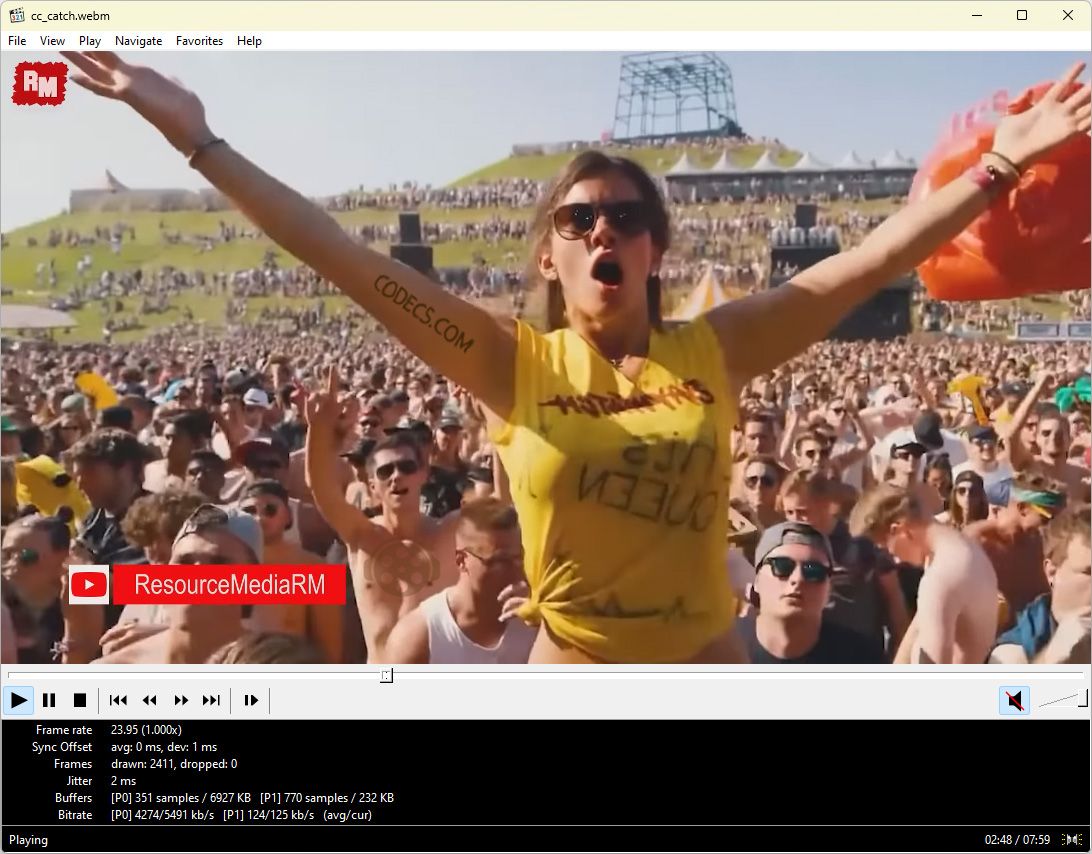 Main Interface
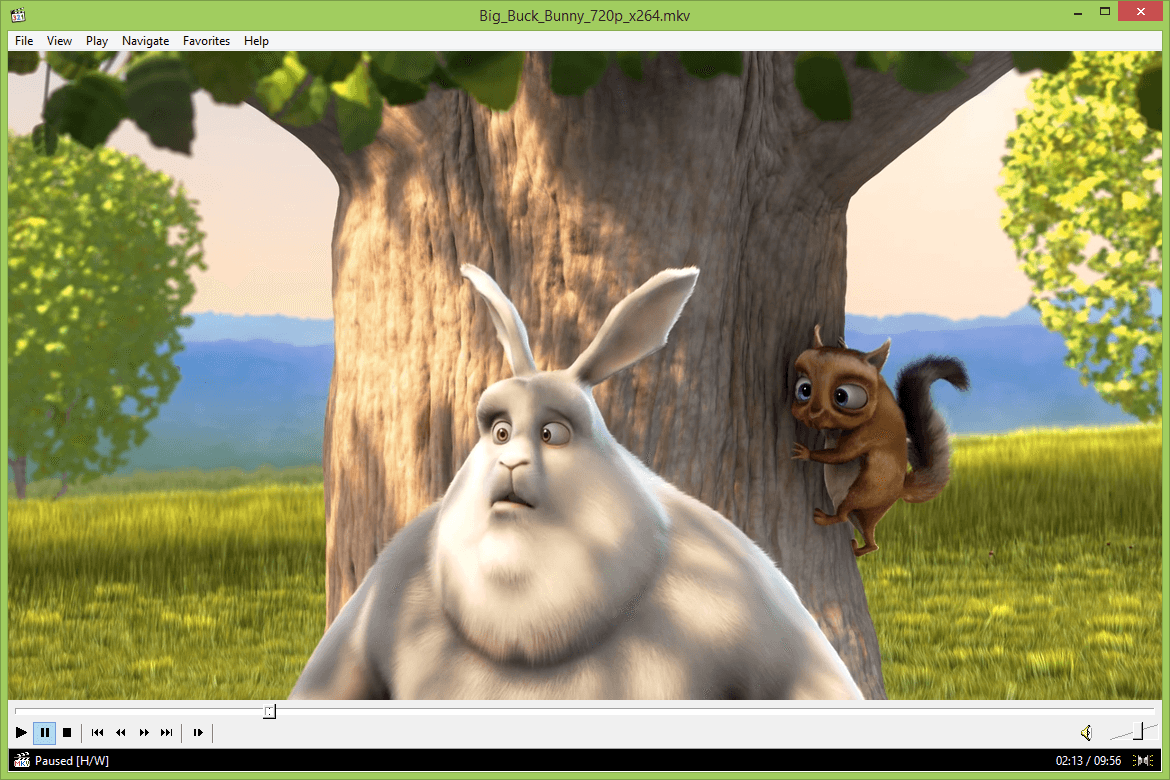 Video Playback
 Player View
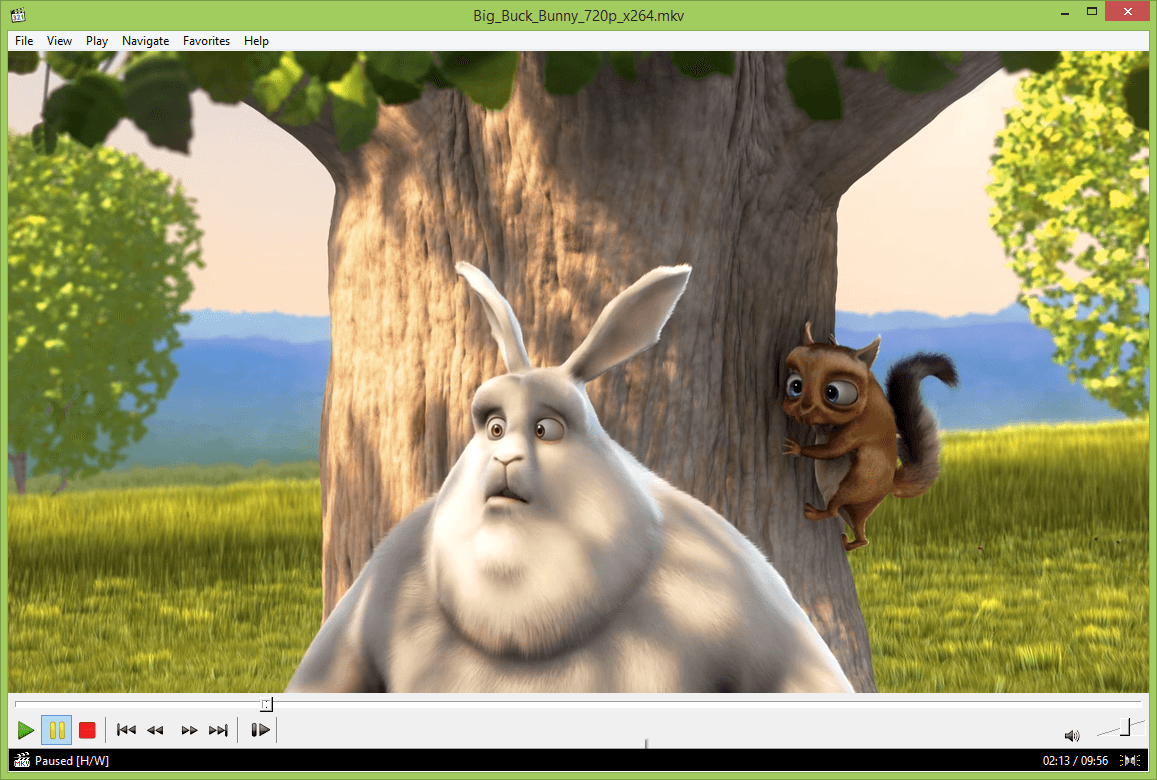 Custom Toolbar
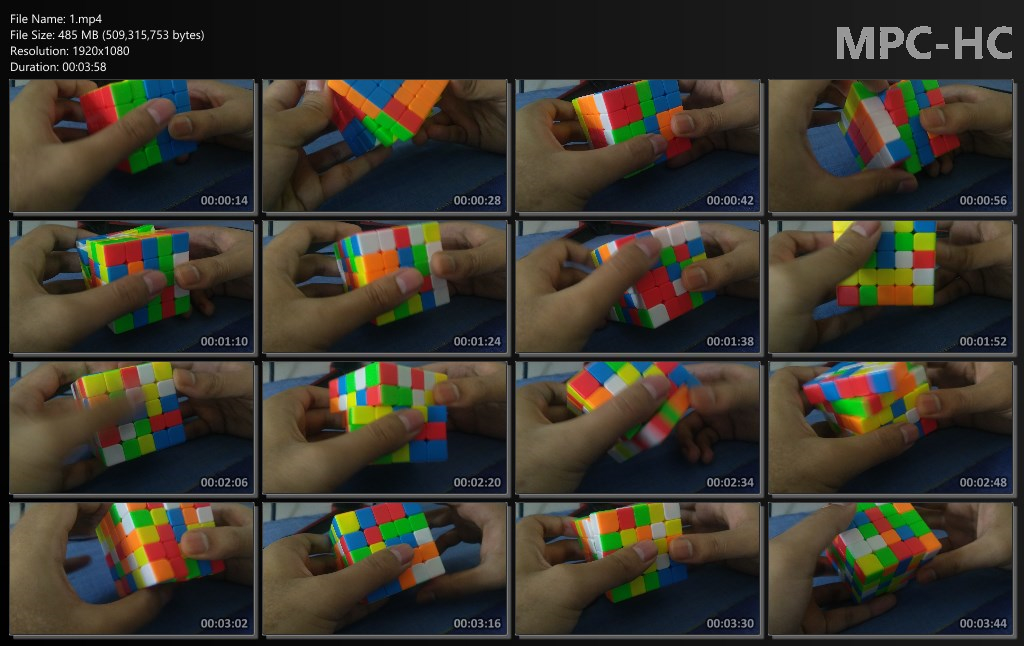 Dark Theme & Thumbnails
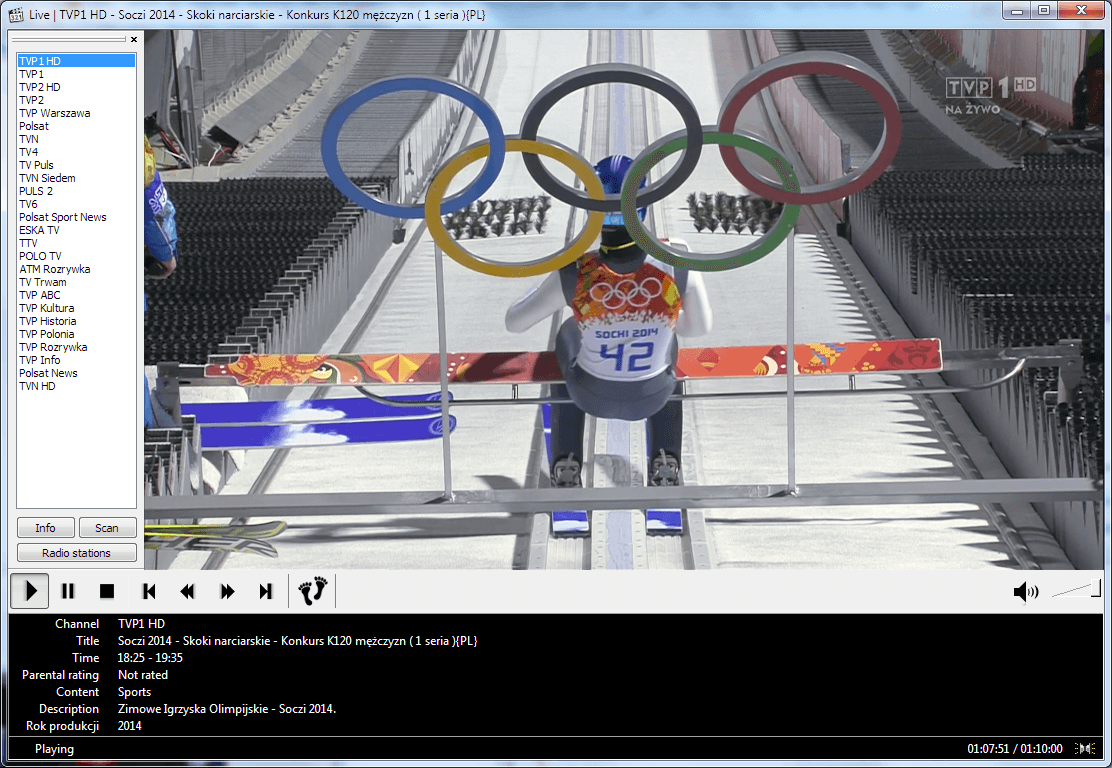 DVB Mode
How to Install Media Player Classic
Follow these steps to download, install, and configure MPC-HC on your Windows PC.
Download the Installer
Head to the download section on this page and click the download button. The installer is a small file (around 22 MB) and downloads directly from the official GitHub release. Choose the 64-bit version if you are running a modern Windows system, or the 32-bit version if you are on older hardware.
Run the Installer
Double-click the downloaded MPC-HC.2.8.4.x64.exe file to begin the installation. You will be asked to accept the GPL-3.0 license agreement. After accepting, choose your installation directory — the default location in Program Files works for most users.
The installer will also offer to install the Microsoft Visual C++ Redistributable if it is not already present on your system. Allow this to proceed, as MPC-HC requires it to run.
Initial Configuration
When you launch MPC-HC for the first time, the player is ready to use with sensible defaults. However, a few settings are worth checking:
Video Renderer: Go to View → Options → Playback → Output and select “MPC Video Renderer” for the best quality. This is the built-in renderer that supports HDR tone-mapping and high-quality upscaling.
Hardware Acceleration: Under View → Options → Internal Filters → Video Decoder, ensure “D3D11” or “DXVA2” is selected under Hardware Decoder. This offloads video decoding to your GPU for smoother playback.
Dark Theme: If you prefer a dark interface, go to View → Options → Player and enable the Dark Theme option.
Set as Default Player
To make MPC-HC your default media player, open Windows Settings → Apps → Default Apps. Search for MPC-HC and assign it to your preferred file types (such as .mkv, .mp4, .avi, .flac). Alternatively, right-click any media file in File Explorer, select “Open with”, then choose MPC-HC and check “Always use this app.”
Start Playing Media
Open any video or audio file with MPC-HC by dragging it into the player window, using File → Open File, or simply double-clicking a media file if you set MPC-HC as the default. The player handles everything from low-bitrate clips to 4K HDR Blu-ray rips without any additional configuration.
To stream a YouTube video, go to File → Open URL, paste the video link, and MPC-HC will play it directly using yt-dlp (if installed separately).
Ready to get started? Download MPC-HC 2.8.4 from the download section above.
Frequently Asked Questions
Answers to the most common questions about Media Player Classic – Home Cinema.
Is Media Player Classic free to download?
Yes, Media Player Classic – Home Cinema is completely free. It is released under the GPL-3.0 open-source license, which means anyone can download, use, and distribute it at no cost. There are no trial periods, no premium tiers, and no hidden fees. The full source code is publicly available on GitHub.
Is MPC-HC safe to download and install?
Yes, MPC-HC is safe when downloaded from the official source. The releases are published on GitHub by developer clsid2 and are digitally signed. The source code is open for inspection, and the project has been audited by the community for years. To stay safe, always download from the official GitHub releases page or verified mirrors like FossHub and SourceForge.
Is MPC-HC still being developed?
Yes, MPC-HC is actively maintained and developed. While the original project was discontinued in 2017, developer clsid2 forked the codebase in 2018 and has been releasing regular updates since. The latest version (2.8.4) was released on October 18, 2026, with new features, bug fixes, and performance improvements. Development activity is visible on the project’s GitHub repository.
Does MPC-HC work on Windows 11?
Yes, MPC-HC works fully on Windows 11. It is compatible with Windows 7 SP1, Windows 8, Windows 8.1, Windows 10, and Windows 11 in both 32-bit and 64-bit editions. The player takes advantage of modern Windows APIs and supports features like DirectX 11 hardware acceleration and HDR output on compatible Windows 10 and 11 systems.
MPC-HC vs VLC — which is better?
Both are excellent free media players, but they serve slightly different needs. MPC-HC is lighter, uses fewer system resources, and offers more precise control over video rendering with its DirectShow architecture. VLC is cross-platform (works on Mac, Linux, and mobile) and has a wider built-in feature set. If you are on Windows and prioritize lightweight performance, clean rendering, and HDR support, MPC-HC is the better choice. If you need a player that works across all your devices, VLC is more versatile.
MPC-HC vs MPC-BE — what is the difference?
MPC-HC (Home Cinema) and MPC-BE (Black Edition) are both forks of the original Media Player Classic. MPC-BE was forked earlier and includes additional features like a built-in SVP integration, different UI tweaks, and an alternative approach to subtitle rendering. MPC-HC, maintained by clsid2, focuses on stability, clean code, and a more streamlined experience. Most users find MPC-HC simpler to use, while MPC-BE appeals to power users who want more customization options.
How do I enable hardware acceleration in MPC-HC?
Open MPC-HC and go to View → Options → Internal Filters → Video Decoder. Under “Hardware Decoder,” select “D3D11” (recommended for modern GPUs) or “DXVA2 (copy-back)” as an alternative. Click Apply. MPC-HC will now offload video decoding to your GPU, reducing CPU usage and enabling smooth 4K playback. For NVIDIA users, “CUVID” is also available. Intel QuickSync is supported for Intel integrated graphics.
How do I enable dark mode in MPC-HC?
Go to View → Options → Player and check the “Use dark theme” checkbox. Click Apply, and the MPC-HC interface will switch to a dark color scheme. The dark theme applies to the toolbar, menus, seekbar, and dialog windows. This feature was added in the clsid2 fork and is not available in the original discontinued version of MPC-HC.
How do I play HDR video in MPC-HC?
To play HDR content in MPC-HC, go to View → Options → Playback → Output and select “MPC Video Renderer” as the video renderer. This built-in renderer supports HDR10 passthrough to HDR-capable monitors and includes tone-mapping for SDR displays. Make sure hardware acceleration is enabled for optimal HDR performance. If your monitor supports HDR, Windows HDR mode should be enabled in Display Settings for passthrough playback.
No sound or audio not working in MPC-HC — how to fix?
First, check that the correct audio output device is selected: go to View → Options → Playback → Output and verify the audio renderer. Try switching between “MPC Audio Renderer” and “DirectSound” to see which works. Also check that the audio track is selected under Play → Audio Track. If the problem persists, go to View → Options → Internal Filters and make sure LAV Audio Decoder is enabled. Resetting MPC-HC settings (delete the INI file or registry entries) can also resolve persistent audio issues.
How do I play YouTube videos in MPC-HC?
MPC-HC supports YouTube streaming through yt-dlp integration. First, download yt-dlp.exe from its official GitHub page and place it in the MPC-HC installation folder (or add it to your system PATH). Then in MPC-HC, go to File → Open URL and paste the YouTube video link. MPC-HC will use yt-dlp to resolve the stream and play it directly. This works for YouTube, Vimeo, and many other video platforms that yt-dlp supports.
How do I make MPC-HC my default media player?
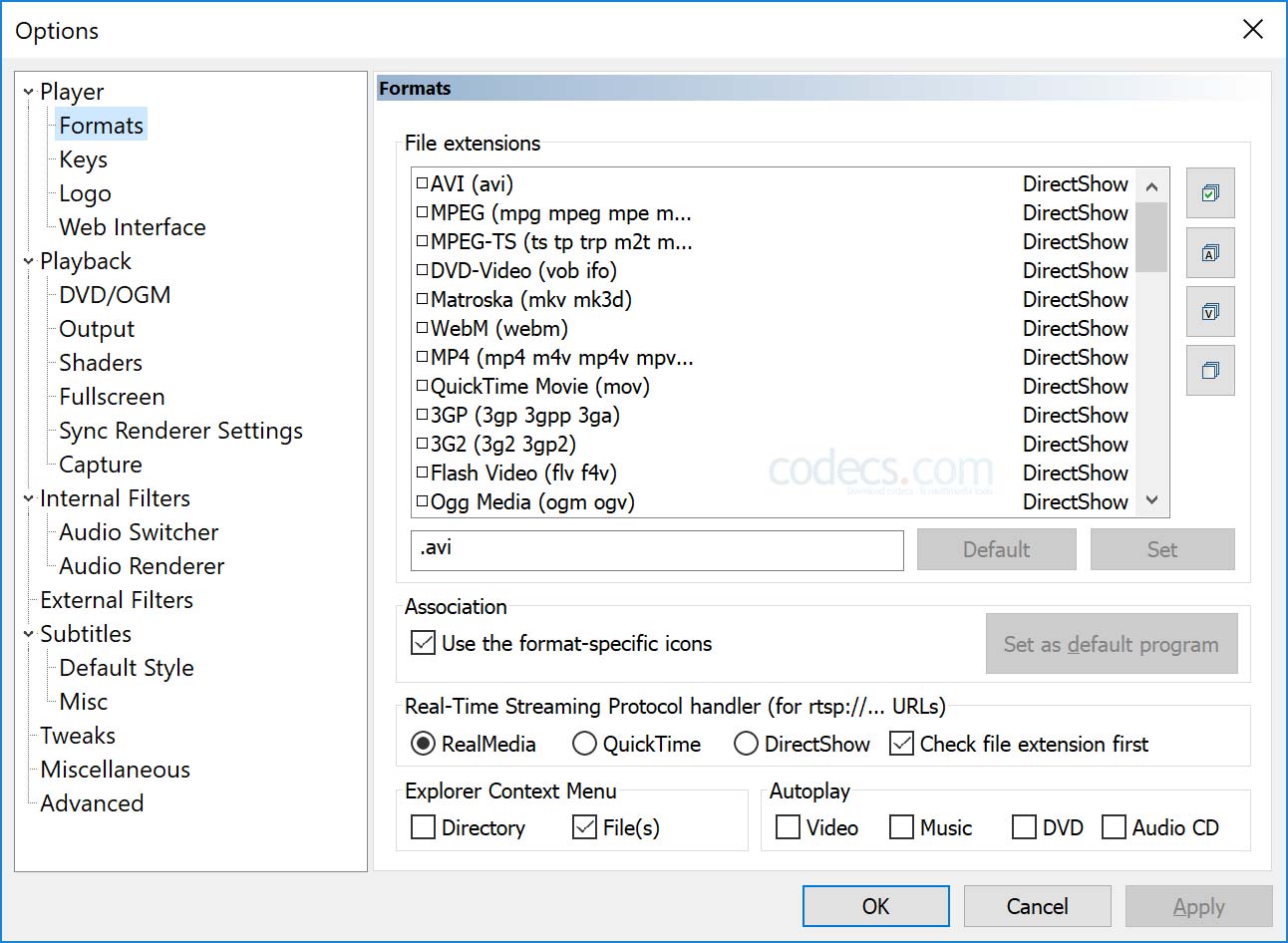
On Windows 10/11, go to Settings → Apps → Default Apps, search for MPC-HC, and assign it to the file types you want it to handle. Alternatively, right-click any media file in File Explorer, choose “Open with” → “Choose another app,” select MPC-HC, and check “Always use this app to open files.” You can also manage file associations from within MPC-HC under View → Options → Formats.
Where can I download MPC-HC officially?
The official download source for MPC-HC is the GitHub repository maintained by clsid2 at github.com/clsid2/mpc-hc/releases. This is where all stable and beta releases are published. Verified mirrors include FossHub and SourceForge. You can also download MPC-HC directly from our download section on this page, which links directly to the official release files.
Still have questions? Check the MPC-HC Wiki on GitHub for more detailed documentation.